
0340 : How to install and login Curtain Frontier Client?
If users need to take controlled files out of the protected area for use by parties outside the company (e.g., suppliers) and ensure their protection, external users’ computers must have the Curtain Frontier client installed. Please follow the steps below to install it.
Steps to install the Curtain Frontier client:
1. Copy the appropriate Curtain Frontier client installation package (e.g., CurtainFrontierClient_Win32_327424.zip or CurtainFrontierClient_X64_327424.zip) to the local drive of the user’s computer.
2. Extract the installation package.
3. Run the Curtain Frontier client installation program. Please make sure to log in as a Windows administrator. Then, select the language of the installation program.
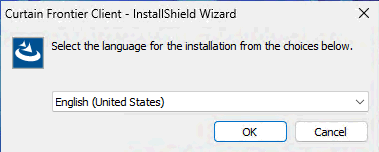
4. Choose the language of the installation program and click OK.
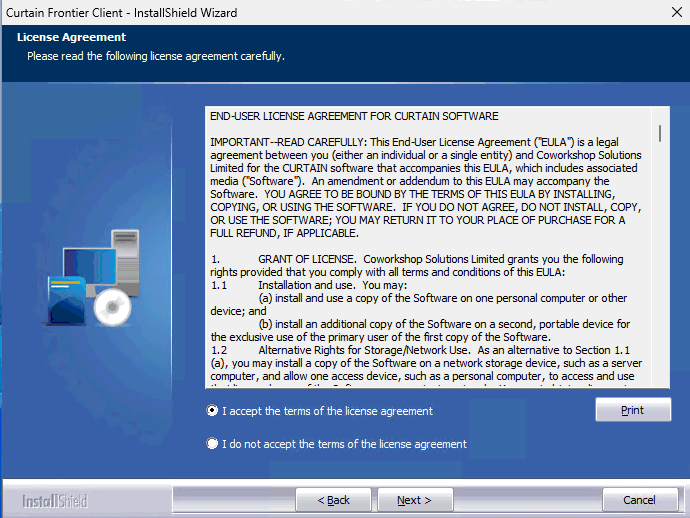
5. Read the software usage license agreement. If you agree to the terms of the agreement, select “I accept the terms of license agreement” and click Next to continue the installation.
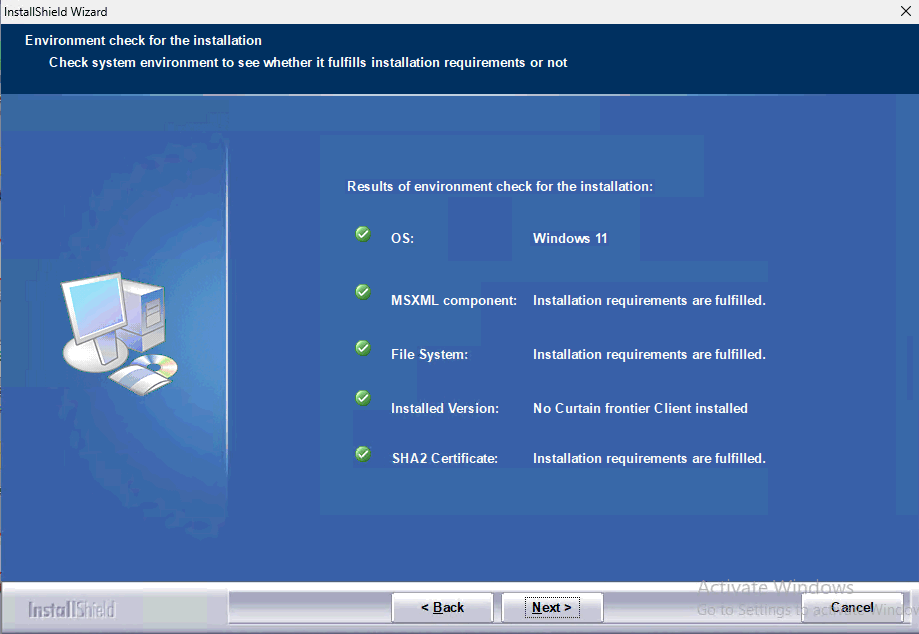
Next, the installation program will check if the system environment meets the installation requirements. Please click Next to continue the installation.
6. Choose the folder for the installation program and click Next to continue the installation.
7. Click the Install button to start the installation process.
8. After the installation is complete, click the Finish button.
Note: No need to restart the computer.

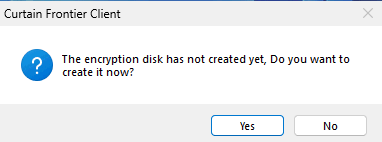
9. Double click to run the Curtain Frontier client, and a prompt to create an encrypted disk will appear. Click the “Yes” button to proceed to the next step.
10. Set up the encrypted disk information:
- Map Drive letter: The drive letter displayed after creating the encrypted disk.
- Store Drive letter: The drive letter where the encrypted disk file is stored (default is C drive, but other local disk drive letters can be selected).
- Drive Size: The capacity of the encrypted disk (default unit is MB, but GB, TB can also be selected).
Note: The set disk size cannot exceed the remaining capacity of the storage drive.
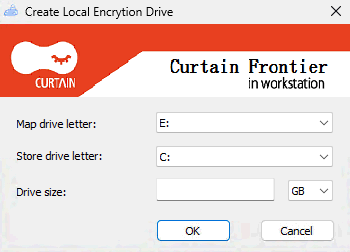
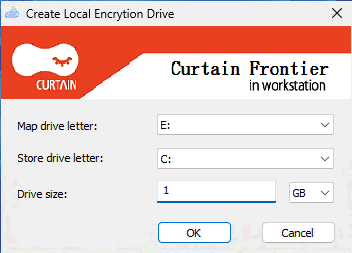
For example, set the mapping drive to E drive, storage drive to C drive, and disk size to 1GB. Then, click the “OK” button.
After the prompt indicates that the creation is complete, click the “OK” button.
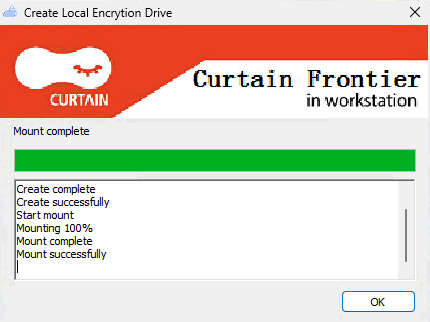
11. Installation completed.
Steps to log in to the Curtain Frontier client:
1. Login Settings:
- Cloud Server: https://curtainfrontier.com (default)
- Company login name: Provided by the administrator or check the registration email notification.
- Username: Provided by the administrator or check the registration email notification.
- Password: Provided by the administrator or check the registration email notification.
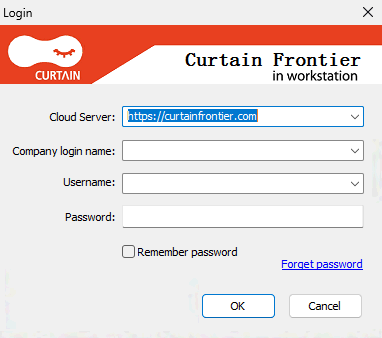
2. After entering the correct login information, the Curtain Frontier client interface will be displayed.
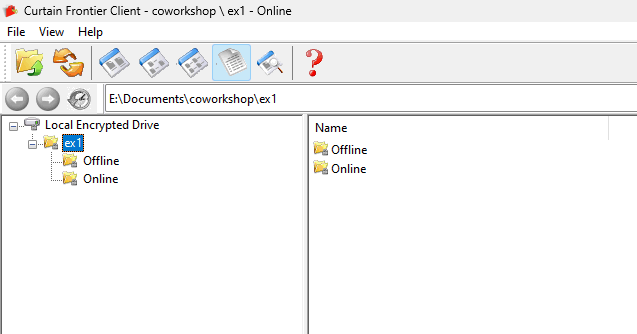
3. Done.


