
0342 : How to post file out of control by Curtain e-locker Client?
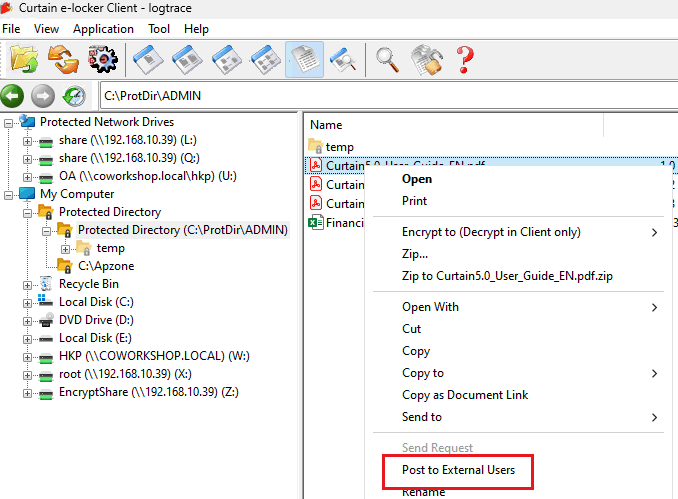
When a protected area file is allowed to be sent to external users, select the file and right click it. In the pop up menu, you will see the option “Send to External User.”
(Refer to FAQ 00341-How to setup Post File Out Control?)
Note: The option will not appear in the right click menu for unauthorized files. Please check your settings.
Steps to send files to external users:
1. Open the Curtain e-locker client, enter the protected area, select the file, and right-click it. In the pop-up menu, select “Send to External User.”
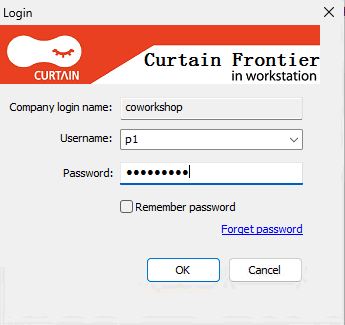
2. Enter the publisher’s account and password, and click the “OK” button to proceed to the next step.
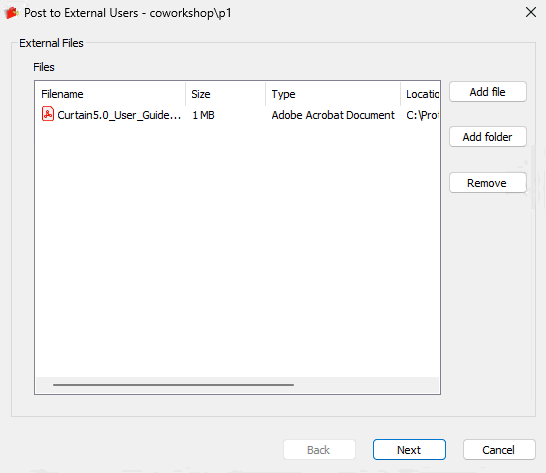
3. In this interface, you can continue adding files or folders, or remove files. Then, click the “Next” button.
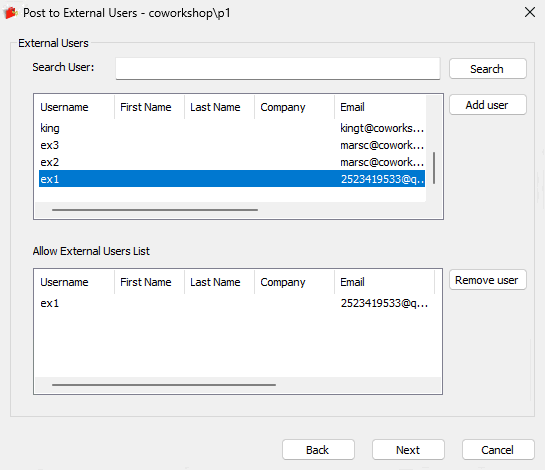
4. Select the external user’s name, click the “Add User” button (you can also double click the user’s name to add them). Then, click the “Next” button.
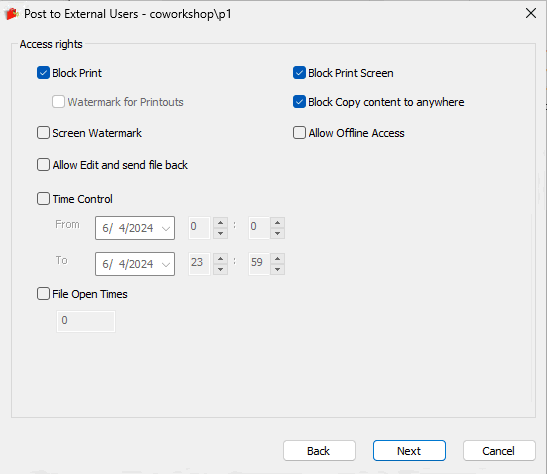
5. In this interface, set the document permissions as needed, and then click the “Next” button.
- Block Print: When checked, the external file cannot be printed.
- Screen Watermark: When checked, the external file will display a screen watermark when opened (refer to FAQ 00305 for enabling screen watermark).
- Allow Edit and Send File Back: When checked, the external file can be edited and sent back to the publisher.
- Time Control: Set the validity period for the external file. It will not open after the set date.
- File Open Times: Set the number of times the external file can be opened. It will not open after exceeding the limit.
- Block Print Screen: When checked, using screenshot tools to capture the external file will fail.
- Block Copy Content to anywhere: When checked, copying the content of the external file to a USB drive or other uncontrolled areas is prohibited.
- Allow Offline Access: When checked, the external file can be used even if the client is offline.
6. The default selection is “Upload to Cloud to download”, Click the “Submit” button.
Note: If you select “Send File Directly,” no copy of the external file will be retained on the cloud server.
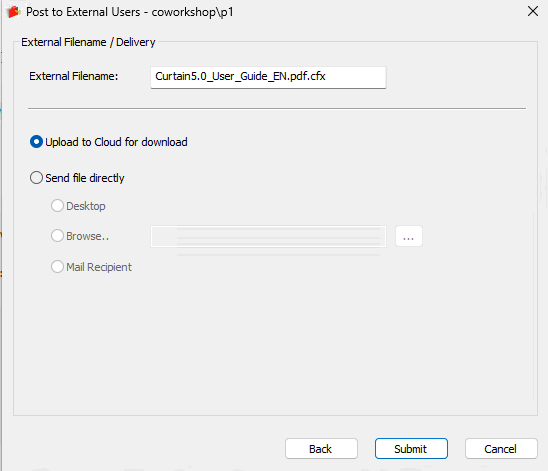
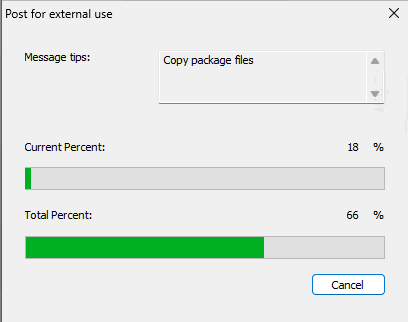
7. The file will be uploaded to the Curtain Frontier cloud server.
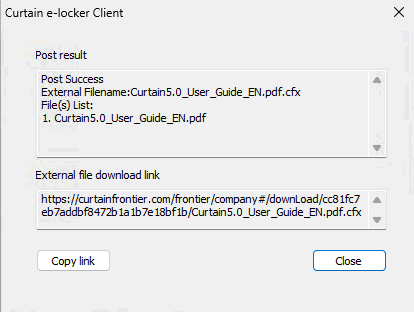
8. After the upload is successful, click the “Copy Link” button and send the link to the external user via email or other ways. Click the “Close” button to exit the operation.
9. Done.


