0085 : How to define Protected server resources?
| Curtain e-locker can be used to protect different kinds of server resources, such as share folders in Windows File Server, web application, or even self developed system.
Steps to define Protected server resources:
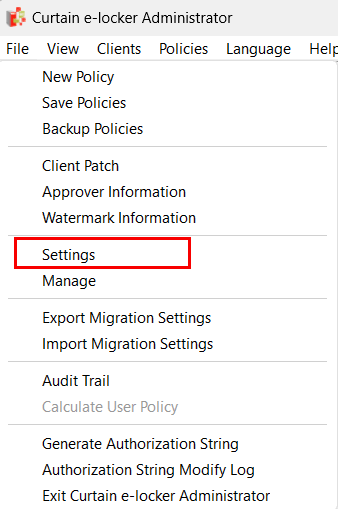
Detailed steps to define Protected server resources: 1.1. In Curtain Admin, select “File > Settings”.
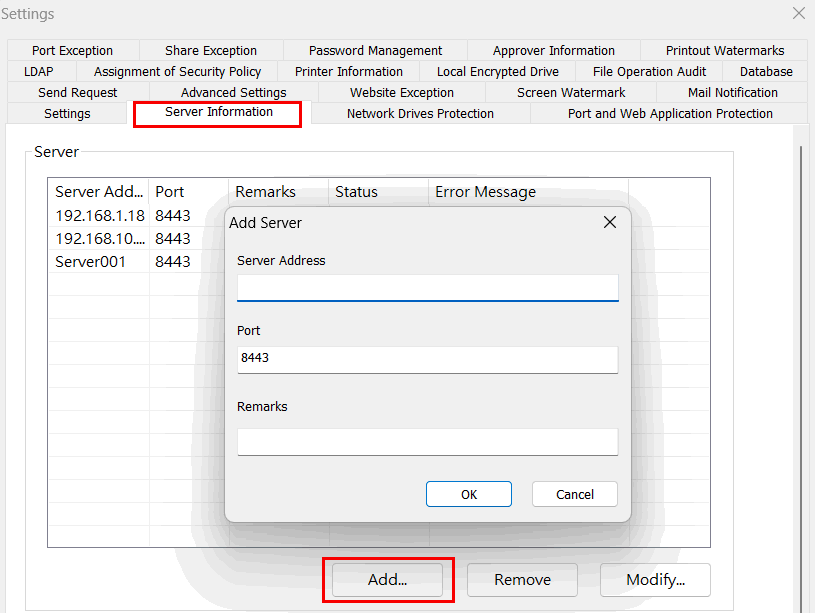
1.2. In Server Information tab, click Add button to add server information first. For example, if you want to protect share folders of two Windows File servers and one web application, you should add the three servers in this tab.
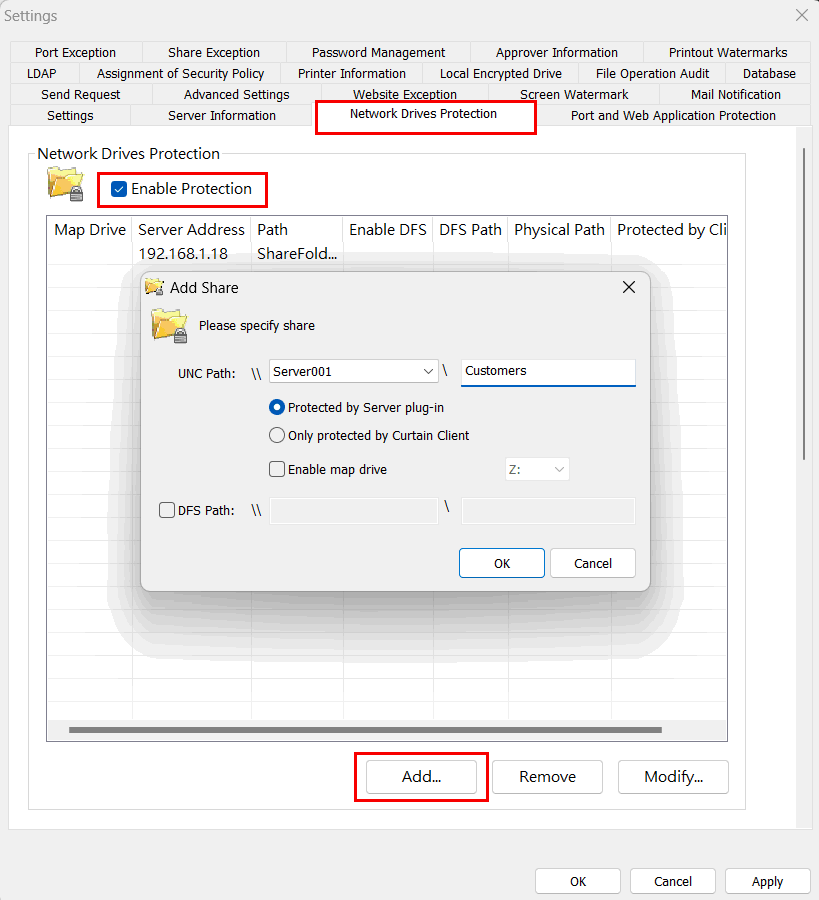
Step 2. Add the protected server resources For scenario 1 – Protect share folder of Windows File Server
UNC Path: \\Server\Share Name
Protected by Server Plug-in: By default, share folders should be protected by Curtain Server Plug-in. Only protected by Curtain Client: Select this option ONLY when you need to protect share folders without Curtain Server Plug-in installed on the server (e.g. NAS – Network Attached Storage). Enable map drive: Check this option and select a drive letter, if you want all Curtain Clients map themselves to this drive at startup. Otherwise, users need to do drive mapping manually or use their own logon script. DFS Path: Check this option, if share folder listed above is managed by DFS (Distributed File System).
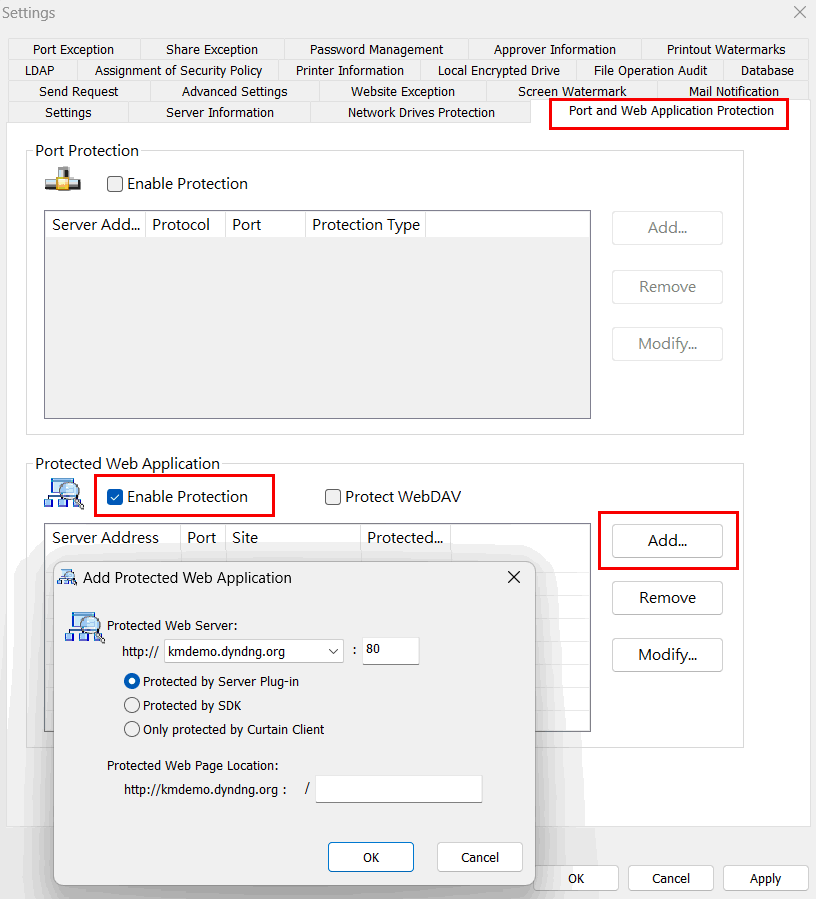
For scenario 2 – Protect Web Application
Protected Web: http://Hostname: Port Number
Protected by Server Plug-in: By default, web application should be protected by Curtain Server Plug-in. Protected by SDK: Select this option, if the web application has been customized for Curtain e-locker by using our SDK (software development kit). Only protected by Curtain Client: Select this option ONLY when you need to protect web application without Curtain Server Plug-in installed on the server (e.g. the web application is running on Linux server). Protected Web Page Location: http://Hostname/Path
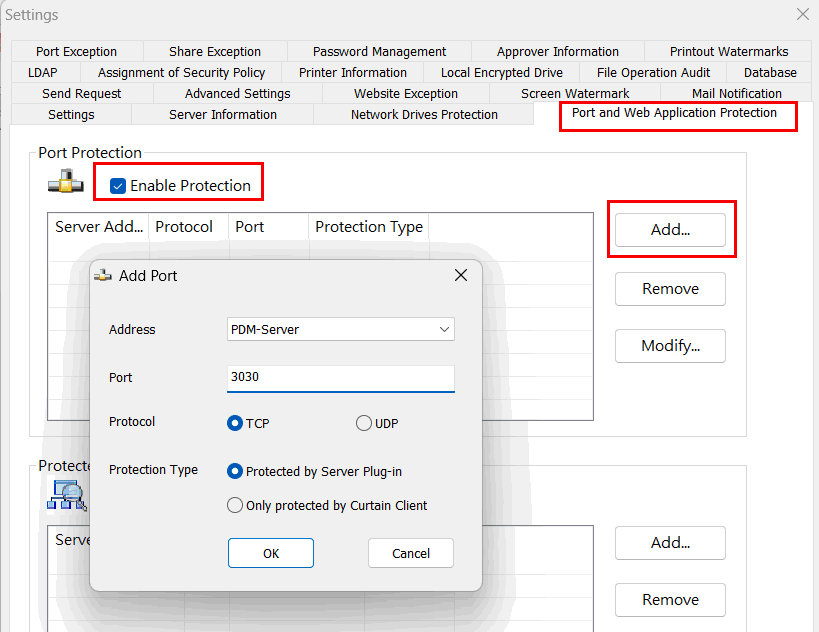
Example 1 – Microsoft SharePoint (e.g. http://SharePoint Server/Site) Example 2 – IBM Lotus Quickr (e.g. http://Lotus Quickr Server/Place) If Protected web page location is blank, the whole web application will be protected. For scenario 3 – Protect Port (for SOLIDWORKS PDM)
Protected by Server Plug-in: By default, application port should be protected by Curtain Server Plug-in. Only protected by Curtain Client: Select this option ONLY when you need to protect application port without Curtain Server Plug-in installed on the server (e.g. the application is running on Linux server). Step 3. Click OK to confirm. |